
Getting started with C on Windows can be done easily by downloading Visual Studio, especialy if you are targetting Windows itself. When targeting Linux it’s of course best to get an actual linux os to get started. Both WSL and Hyper-V makes it easy to create and run an actual Linux distro on Windows, however if all you want to do is write some code this can be quite the overhead. A recent option I’ve been looking into is using devcontainers in VS Code.
Clone the final repo from my github.
Getting started
Create a folder and init a new git repo, start VS code
mkdir c-in-devcontainer
cd .\c-in-devcontainer
git init
code .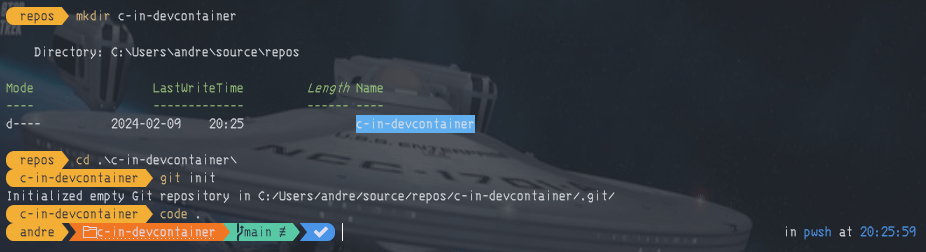
If not installed press Ctrl + Shift + x to go to the extensions tab and install the Remote Development extension (id ms-vscode-remote.vscode-remote-extensionpack). Open the command palette by pressing Ctrl + Shift + p. Begin to type Add Dev Container Configuration Files… and pick it when the option appears.

Pick Add configuration to workspace and then C++. I’m gonna pick the default for the rest of the options and not install any aditional packages. VS Code has now created a folder .devcontainer with a devcontainer.json file and a Dockerfile. Open the devcontainer.json file and add the following to the json object:
...
"runArgs": [
"--name",
"c-in-devcontainer"]
...
Open the command palette by pressing Ctrl + Shift + p and pick Rebuild and Reopen in Container. VS Code will build the Dockerfile, start a container and reopen with the folder inside the folder. How cool right? 😎
Life inside a devcontainer
Notice in the bottom left corner:

VS Code is currently opened inside our running docker container. Opening a terminal and typing gcc --version will display information about gcc wich is already installed inside the container.

And if you create src/main.c and begin writing code you will even get syntax highlighting and intelisense:
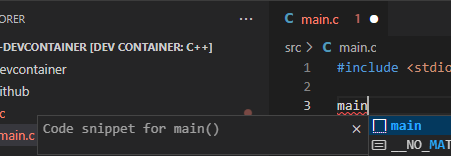
Go to the extensions tab and see that there are extensions listed for the devcontainer.

For anyone cloning your repo, setting up a development environment requires no installation and no modification to VS Code and ensures everyone can have the same development experience (given they have VS Code and docker installed).
Let’s write some code
Create a Makefile in the root and add a simple default target:
build:
    gcc src/main.c -o c-in-devcontainer
Alter our file src/main.c:
#include <stdio.h>

int main(int argc, char const *argv[])
{
  printf("Hello world!\n");
  return 0;
}
Run make in the terminal to compile the project and then try out our new masterpiece:
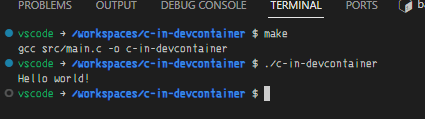
Let’s read some user input!
// main.c
#include <stdio.h>

int main(int argc, char const *argv[])
{
  char name[50];
  printf("Hello, what's your name?\n");
  scanf("%s", name);
  printf("Hello %s\n", name);
  return 0;
}
Compile and run again

I’m gonna add a .gitignore and refine the make file a bit, clone it from github to get started!
 CodeContra